

5. Tools and languages
5.1 The Tools page
The table of all the tools split into the eight kinds, the five states, installing and updating right away or choosing first and then “Apply”.
In the app: «Tools»
In short
- The Tools page lists all the components the kit can install, divided into eight kinds as on the site: system and editor, AI agents, local models, languages, development tools, web servers, databases, database viewers.
- The icons on the rows act right away: “Install” and “Update” start as soon as you press them.
- The “Updates” box lists the installed components with a new version, with “What changes” and “Update”; their number appears on the Tools icon.
- The checkboxes, instead, prepare a choice that you confirm with “Apply”: this way you install and remove several things at once.
- Each row shows the status on disk with an icon: not present, pre-installed, installed, to update, error.
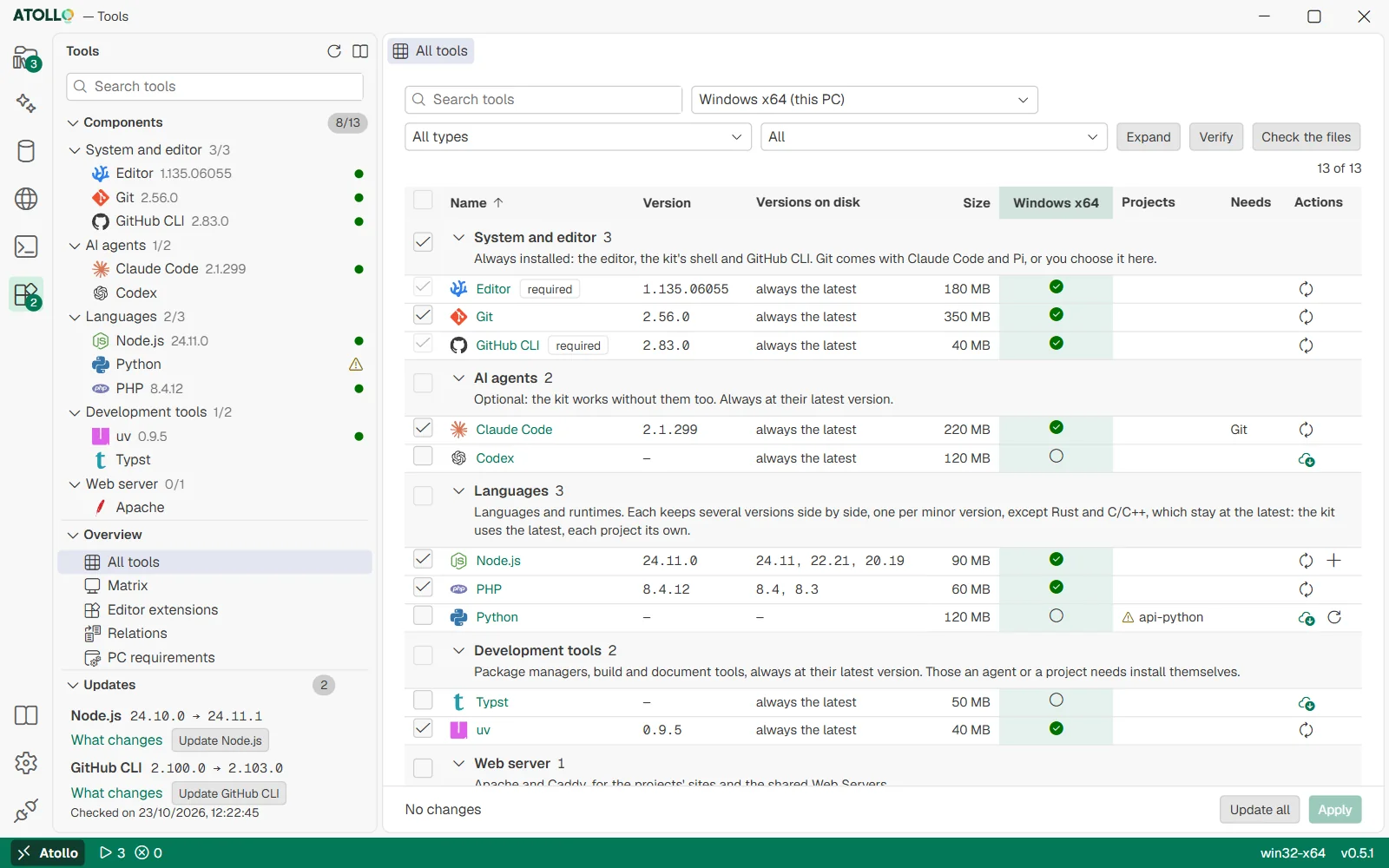
Filters at the top, one row per component with state, versions and actions; at the bottom the bar with “Update all” and “Apply”.
How the page is laid out
| Part | What it contains |
|---|---|
| Search tools | Searches the name, the description and the identifier. |
| “Components” box | A tree with the eight kinds and their components, with how many are installed. A click opens the component's tab. |
| “Overview” box | The overall views: “All tools”, “Matrix”, “Editor extensions”, “Relations”, “PC requirements” (Overviews: matrix, relations, extensions, requirements (5.3)). |
| “Updates” box | The installed components that have a new version, each with “What changes” and “Update”; the number also appears on the Tools icon in the activity bar. |
| “All tools” tab | The first tab, always open: the table of all components. |
| “Apply” bar | At the bottom, always visible: the pending changes, “Update all”, “Apply”. |
| Type | What it contains |
|---|---|
| System and editor | Editor, PowerShell 7, GitHub CLI: always installed. Git: your choice, and it comes with Claude Code and Pi. |
| AI agents | Claude Code, Codex, Antigravity, Pi: optional, always at the latest version. |
| Local models | llama.cpp, the server of the language models on the PC: Pi and the chat in the browser use them, with no network. Optional, at a pinned version; the models are downloaded from the AI page, Local models pane (Local models: llama.cpp and GGUF (4.4)). |
| Languages | All languages and runtimes: Python, Node.js, PHP, Go, Java, Rust, Kotlin, .NET, Dart, Zig, Julia, Bun, Deno, C/C++, Ruby, R. All of them can have several versions side by side, except Rust and C/C++, which stay at the latest version. |
| Development tools | uv, pnpm/yarn, CMake/Ninja, Android SDK, Typst, TinyTeX: a single version, always the latest (only Typst can keep more than one); the ones that are needed install themselves. |
| Web server | Apache and Caddy, for the projects' sites and the shared Web Servers. |
| Databases | The servers: MySQL and MongoDB (several versions), SQLite. |
| Database viewers | The databases in the browser: phpMyAdmin for MySQL, mongo-express for MongoDB. They open from the Databases page, which installs them the first time. |
The “All tools” table
Above the table are the filters: the search, “Platform”, “Type” (“All types” or one of the eight) and “Status” (All, Installed, Not installed, To apply, Used by projects), plus the “Expand” and “Verify” buttons. The columns: name, version, versions on disk, size, status, projects that use it, what it requires and the actions.
The rows are divided by kind. Each kind has a title row: the arrow to fold or unfold it, its name, how many components it holds (“3”, or “2 of 5” when a filter hides some), its description and a “Choose all: …” checkbox that chooses all its components that can be chosen; the checkbox in the header, “Choose all those shown”, does the same with all the visible rows. A click on a column header sorts the rows inside each kind (by name at first).
| Status | Icon | Meaning |
|---|---|---|
| not present | empty circle | There is nothing on disk. The tooltip says why (not chosen, not available on that system…). |
| pre-installed | green package | The archives are already in the kit and the installation completes at the first start on that system. |
| installed | green circle with a check mark | Ready to use. |
| to update | yellow triangle | It must be reinstalled because the kit was moved and that component does not follow it (this happens only on macOS and Linux). It does not mean that a new version exists. |
| error | red circle with an X | The last installation failed, or a part is missing on disk. The tooltip says what. |
While work is in progress, four more states appear, only on the system shown: “in progress” (with the download percentage), “queued”, “to install” and “to remove” (choices not yet applied).
Acting right away, or choosing and applying
| Command | Where | What it does |
|---|---|---|
| Install (cloud) | Row of a component that is not installed | Installs it right away, at the latest version. |
| Install a version (+) | Row of a language that is not installed | Installs it right away in the version you choose from the menu. |
| Update | Row of an installed component | Downloads the new version right away, if there is one. |
| Add a version (+) | Row of an installed language | Downloads another version alongside the ones you have. |
| Checkbox | Every row except those always installed; “Choose all: …” in the kind's row | Marks the component to install or remove, waiting for “Apply”. |
| Apply | Bar at the bottom | Shows the summary and, with “Confirm”, installs and removes what you marked. |
| Update all | Bar at the bottom | Brings every installed component to the latest version and every version to the latest patch. |
- Tick the components to add and untick the ones to remove. The changed rows are highlighted in color.
- At the bottom the bar says, for example, “2 to install (180 MB), 1 to remove”.
- Press “Apply”: “Apply the changes?” appears with the list of what will be installed and removed. “Back” or Esc closes the question without changing anything.
- Press “Confirm”. First things are removed, then installed; the progress runs in the bar (“Installing 1/3: …”). “Cancel” stops at the end of the current step.
- Removing a component is possible only with the checkbox and “Apply”, never with an icon: it is an operation that needs confirmation.
- Dependencies follow in both directions: choosing Kotlin chooses Java, removing Java removes Kotlin and Android. The labels on the rows explain it (“Needs Java: installed with it”, “Needed by Kotlin: stays installed while it is needed”).
- A component required by a project but not chosen has a triangle and the label “Needed by the projects: … Not chosen: choose it so they work.”
- A component deleted by hand from the disk is removed from the selection when the page opens, with a warning.
A component's tab
A click on the name opens the tab. At the top, like the page of an editor extension: the large logo, the name, kind, status and size, the description and the buttons “Install”/“Keep” and “Remove”/“Do not install” (choices to apply), plus “Official site”. Below, a bar with three sections, one at a time:
| Section | What it contains |
|---|---|
| Versions | Only for components with several versions (languages, web servers, databases): the versions on disk and the ones to download (Several versions of the same tool (5.2)). |
| Details | Kind, version, size, what it requires, what needs it, site. |
| Projects | The projects that use it and, for languages, the version each one chose. |
“Platform”, “Expand”, “Verify” and “Check the files”
- “Platform” chooses which system to view (and prepare) the components for: Windows x64 or ARM64, macOS Apple Silicon or Intel, Linux x64 or ARM64. The same kit on a USB stick opens on all six: from here you can prepare the programs for another system before taking the stick there.
- “Expand” adds a status column for each of the six systems; “Collapse” goes back to the one of the chosen system.
- “Verify” asks every installed component to respond with its version, and adds a ✓ or ⚠ mark in the status cell.
- “Check the files” compares the files of every installed program with those of its installation: it finds the files missing or changed, for example on a damaged USB stick. Every damaged folder shows how many files changed and how many are missing, the first paths and “Reinstall”; with more than one there is also “Reinstall all”. If everything is fine, “No damaged file” appears with the number of folders checked.
- “Reinstall” puts the program's files back at the same version; projects and databases are not touched. Files added after the installation (pip packages, gems, workloads) and those the kit or the programs change on purpose (httpd.conf, config.inc.php, the logs) are not damage. Rust, Android and TinyTeX are not checked: their folder is theirs to change.
- A component installed before Atollo kept the manifest appears in the “Without a manifest” list: it is checked from its next installation or update.
The “Updates” box
In the Tools side bar, below “Components” and “Overview”, the “Updates” box lists the installed components that have a newer version at their source: instead of “Update all” blindly, you see what changes and choose. The number of those behind appears on the box's title and on the Tools icon in the activity bar (“New versions: 2”).
- Each row: the name, the installed version → the new one (for example 2.100.0 → 2.103.0), “What changes” and “Update”.
- “What changes” opens the component's release notes in the browser (its source's changelog or releases page); if the component has none, its official site.
- “Update” updates only that component, like “Update” in its row of the table; when the work ends the row disappears from the box.
- The versions are asked by themselves after the start, at most once a day, only with “Automatic update” on in Settings; “Check now” (the circular arrow on the box's title) asks them at once. At the bottom, “Checked on …” says when.
- “Everything up to date.” when nothing is behind; “Not checked yet…” until the versions have never been asked. The components that are part of the app, at a pinned version, do not appear: they follow Atollo's version. Versions are compared by numbers (2.10 comes after 2.9), and an older version at the source is not an update.
Under the hood
- The selection is in data\app\components.txt, one for all systems.
- The programs are in data\apps\<system>\<component>; the installed version in data\app\versions\<system>\<component>.txt.
- A removed component is also removed from the folders of the other systems that have it on disk.
- The “to update” status corresponds to a <component>.reinstall file, written when the kit changes folder and a conda environment (R, Ruby, MongoDB and SQLite on Linux, make) cannot follow it.
- “Check the files” reads .atollo-manifest, written at the end of every installation in the component's (or the version's) folder: size and SHA-256 of every file. “Reinstall” writes the same <component>.reinstall mark (or <component>@<version>.reinstall) and prepares the component again.
- The latest versions asked for the “Updates” box are in data\app\updates.json, with the time of the check. Each component asks its source as an update of it would (one request per installed component; those to GitHub go through the cache of data\cache\github); a source that does not answer keeps the version of the last time.