

7. Taking the kit with you
7.1 Safely removing the drive
Closing everything the kit has opened before unplugging the USB stick or the disk, without losing data.
In the app: «Remove drive»
In short
- Before unplugging the kit's USB stick or drive, use the “Remove drive” page.
- It neatly closes everything the kit has opened: projects, servers, editor, consoles, databases.
- Then close Atollo and remove the drive with Windows' “Safely Remove Hardware”.
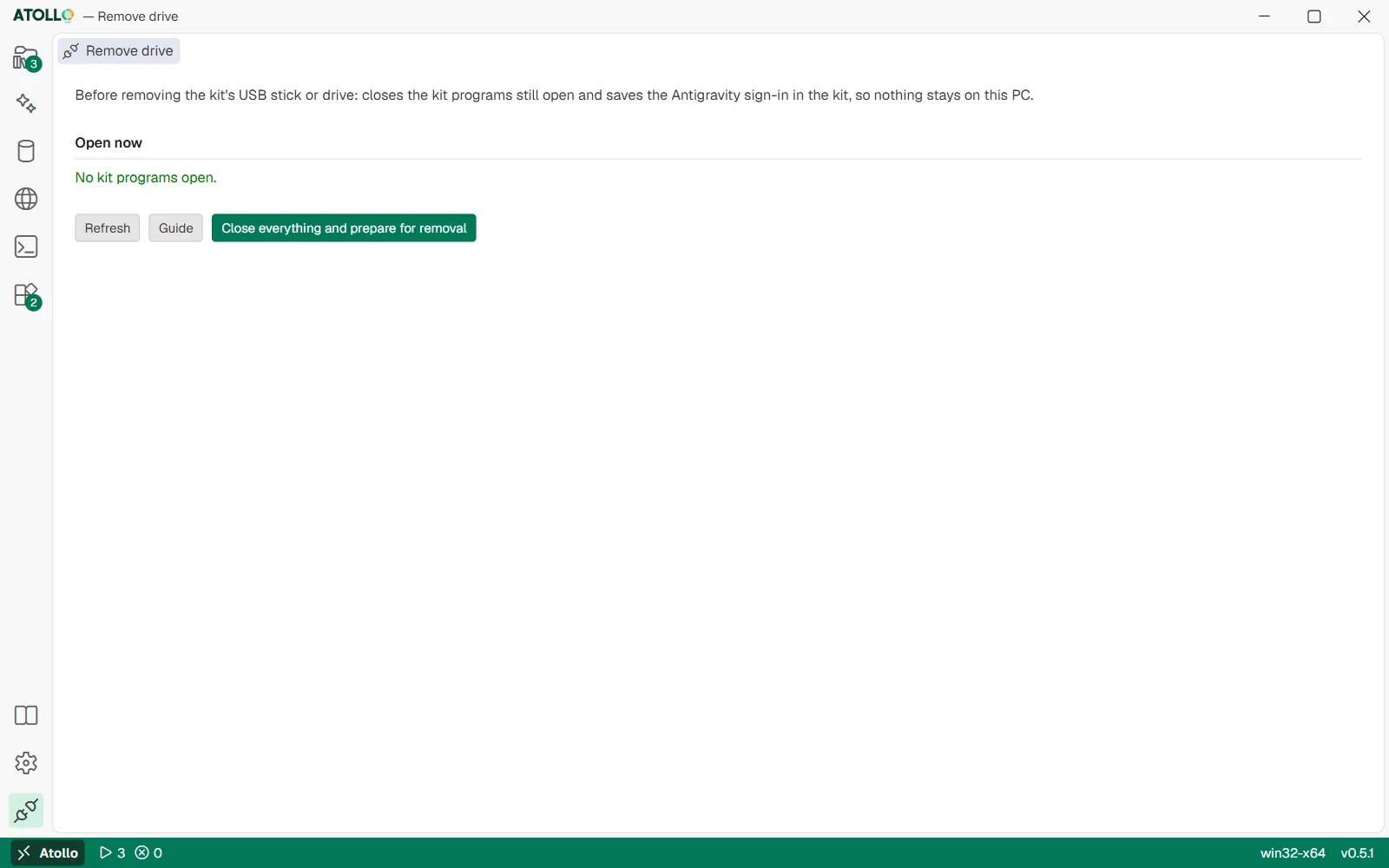
What is open right now and the button that closes everything before you unplug the drive.
Why it matters
A database switched off abruptly can lose the last data written, and a program with a file open on the USB stick prevents Windows from removing it. The page closes everything the right way: the databases with their shutdown command, the servers and the programs one by one. And it saves the Antigravity sign-in in the kit, so nothing is left on the PC.
Step by step
- Save the open work in the editor and the other programs.
- Open “Remove drive” (the last icon at the bottom of the activity bar). The “Open now” part lists what is open: installation in progress, editor, consoles, running projects, running databases, the local models server and the kit programs started outside the app, with name and PID.
- Press “Close everything and prepare for removal”.
- When “Kit programs closed and Antigravity sign-in saved in the kit.” appears, press “Close Atollo”. If something is still open, it is listed under “Still open (close them manually)”.
- Remove the drive from the system: on Windows with the “Safely Remove Hardware” icon; on macOS by ejecting it from the Finder.
And if I just close the window?
If something is open, Atollo asks “Close Atollo?” and lists what will be closed. “Close everything” stops actions and servers, shuts down the databases neatly and exits. This is safe too; the “Remove drive” page also closes the kit programs started outside the app (for example from a console) and tells you if anything is left.
The same goes for “Close Atollo” in the menu of Atollo's icon, in the Windows notification area, the macOS menu bar or the Linux status area. That menu also has “Show Atollo” and “Projects”, with the most recent projects: a click opens the project's page.
Under the hood
The order in which the page closes things:
- InstallationIt stops at the end of the current step.
- ProjectsThe running actions.
- Web serversThe Caddy and Apache pools.
- EditorThe windows; the editor server stops right after the databases.
- DatabasesOrderly shutdown of MySQL and MongoDB, every running version.
- The restConsoles and every process whose program is inside the kit.
- AntigravityThe sign-in goes back into the kit, the system goes back to how it was.
The kit cannot find the PC's programs that have opened a file on the USB stick (for example a document open in an outside app): close them yourself.