

2. Projects
2.2 The Projects page and the “Quick panel”
The list of projects, the “Quick panel” with favorites and recent ones, quick open with Ctrl+P, commands with Ctrl+Shift+P and the seven sections of a project.
In the app: «Projects»
In short
- In the sidebar you find the list of projects; a click opens a project's page in a tab.
- The “Quick panel” gathers what is running, the favorites, the recent ones and what needs fixing.
- A project's page has the main buttons at the top and seven sections below.
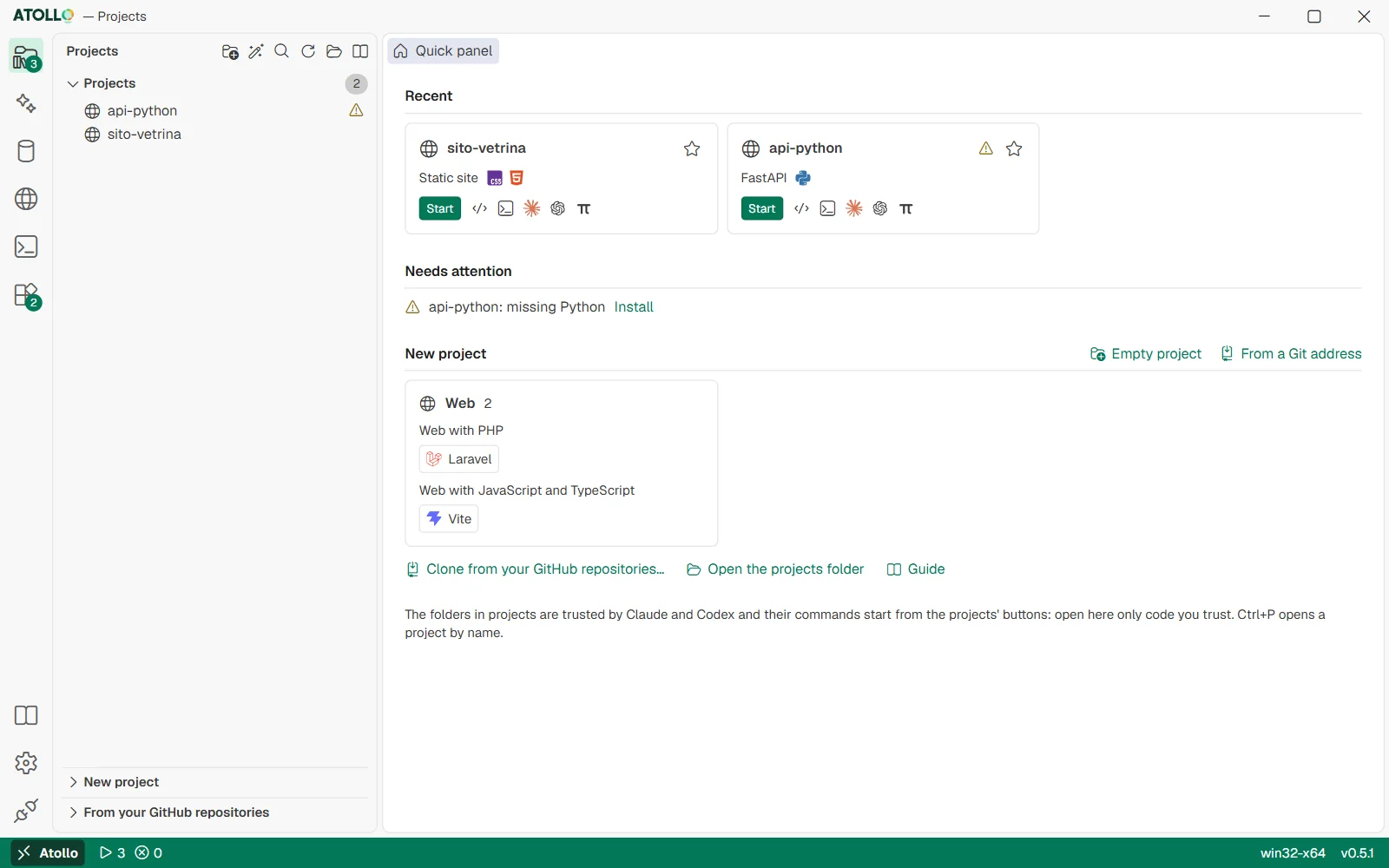
Recent projects, things to fix and the three ways to a new project. On the left, the list of projects.
The sidebar
At the top, the icons: “New project”, “New project from a base”, “Open a project (Ctrl+P)”, “Refresh”, “Open folder” (opens projects) and the guide's book. Below, four panes:
| Pane | What it contains |
|---|---|
| Projects | All the projects in alphabetical order, with the count at the top. Folders starting with a dot and links do not count. With more than six projects the “Search projects” box appears. |
| Data without a project | It appears only if the kit has data of projects that are no longer in projects. See Deleting a project and the “Data without a project” (2.7). |
| New project | The tree of the ways to create a project: “Empty project”, “From a Git address” and the bases in the My bases, Web, CMS, App and Other groups. |
| From your GitHub repositories | The repositories of your account, ready to clone. |
A click on a pane's title opens or closes it. Alone, “Projects” takes the full height; if “New project” or “From your GitHub repositories” is open too, “Projects” takes only the height of its rows (and scrolls only if they do not fit) and the rest goes to the other open panes.
Each project row has an icon that says what kind of project it is: a globe for a website, a window for an app with a window, a terminal for a command-line program. A green dot means something is running; a yellow triangle that components are missing. Hovering over the row shows the buttons ▶ “Start” (or ■ “Stop”), “Editor”, “Terminal” and one for each installed agent, with its logo.
The “Quick panel”
It is the first tab of the page, always there. It only shows the parts that have something to show:
| Part | What it shows |
|---|---|
| Running | The actions started in this session, with the address and the “Open in the browser”, “Show the output”, “Stop” buttons. |
| Favorites | The projects you have marked with the star (“Add … to favorites”), as cards with their languages and buttons. |
| Recent | The six projects used or changed most recently, excluding those already among the favorites. |
| Needs attention | The actions stopped with an error (“Show the output”) and the projects missing components (“Install”, which opens the project's Components section). |
| New project | Beside the title “Empty project” and “From a Git address”; below, a block per group, My bases, Web, CMS, App and Other, with the bases as buttons (a click opens the wizard on that base); at the bottom the links to GitHub repositories, the projects folder and the guide. |
Opening a project by name
From any page press Ctrl+P (⌘P on macOS): “Open a project” appears. Type part of the name, the platform or a language; projects are sorted by recent use. Enter opens the page, Shift+Enter immediately starts the default action.
To do something with a project without opening it, Ctrl+Shift+P (⌘⇧P on macOS) opens “Commands”, from any page and also from a terminal. For each project, newest first: “Start” or “Stop” (its default action), “Open” (its page), “Open … in the editor” when the editor is installed and “<agent> in <project>” for each installed agent. There are also “Start” or “Stop” for the installed MySQL and MongoDB servers, “Go to” for the other pages and, when something is running, “Stop everything”: the same button as in the “Activity” panel, without its question, because choosing it is already the confirmation. Type several words, for example “start shop”: each one must appear, in any order. If a command fails after the palette closed, the error appears under the title bar.
A project's page
At the top are the name, the type and the recognized platform (for example “Laravel · website”), the language logos, the Git branch and, if components are missing, a “Missing: …” warning. Then the buttons:
| Button | What it does |
|---|---|
| Start / Stop | Starts the project's default action, or stops it if it is running. |
| Editor | Opens the project in the editor, in an Atollo window. |
| Terminal | Opens a kit console in the project folder, with its versions. |
| Agent logos | One button for each installed agent: a click on its logo opens that agent in the project. From then on Claude Code and Codex trust the project's folder. |
| Open folder | Opens the project folder in File Explorer (or Finder). |
| Save as a base | Saves the project's files as a base of “New project”, under “My bases”: you choose what to copy, never .env. |
| Refresh | Rereads the project: useful after changing panel.json or the project's files by hand. |
Below, the seven sections:
| Section | What it is for | Topic |
|---|---|---|
| Run | The project's actions, their status, the port and the output. | Starting a project: actions and ports (2.3) |
| Website | Serving a project folder as a website, with static files, PHP, Caddy or Apache. | Websites and .localhost addresses (3.3) |
| Components | The tools needed, how the project was recognized, the versions. | Components and versions of a project (2.4) |
| Databases | The project's database and user, the connection in the .env file, the copies. | A project's database (3.2) |
| Extensions | The editor extensions active in this project. | Editor, terminal and extensions (2.5) |
| Editor | Editor settings and the project's MCP servers. | Editor, terminal and extensions (2.5) |
| Git | Remote, branch and sync, read-only. | A project's Git (2.6) |