

3. Databases, websites and terminals
3.4 The kit's terminals
Consoles with the kit's tools in any folder on the PC, and terminals of your own with the tools and versions you choose.
In the app: «Terminals»
In short
- A kit terminal is a console with only the kit's environment: no profile and no programs from the PC.
- It opens in any folder on the PC, not only in projects.
- The “All tools” terminal is always ready; you can create your own with the tools and versions you choose.
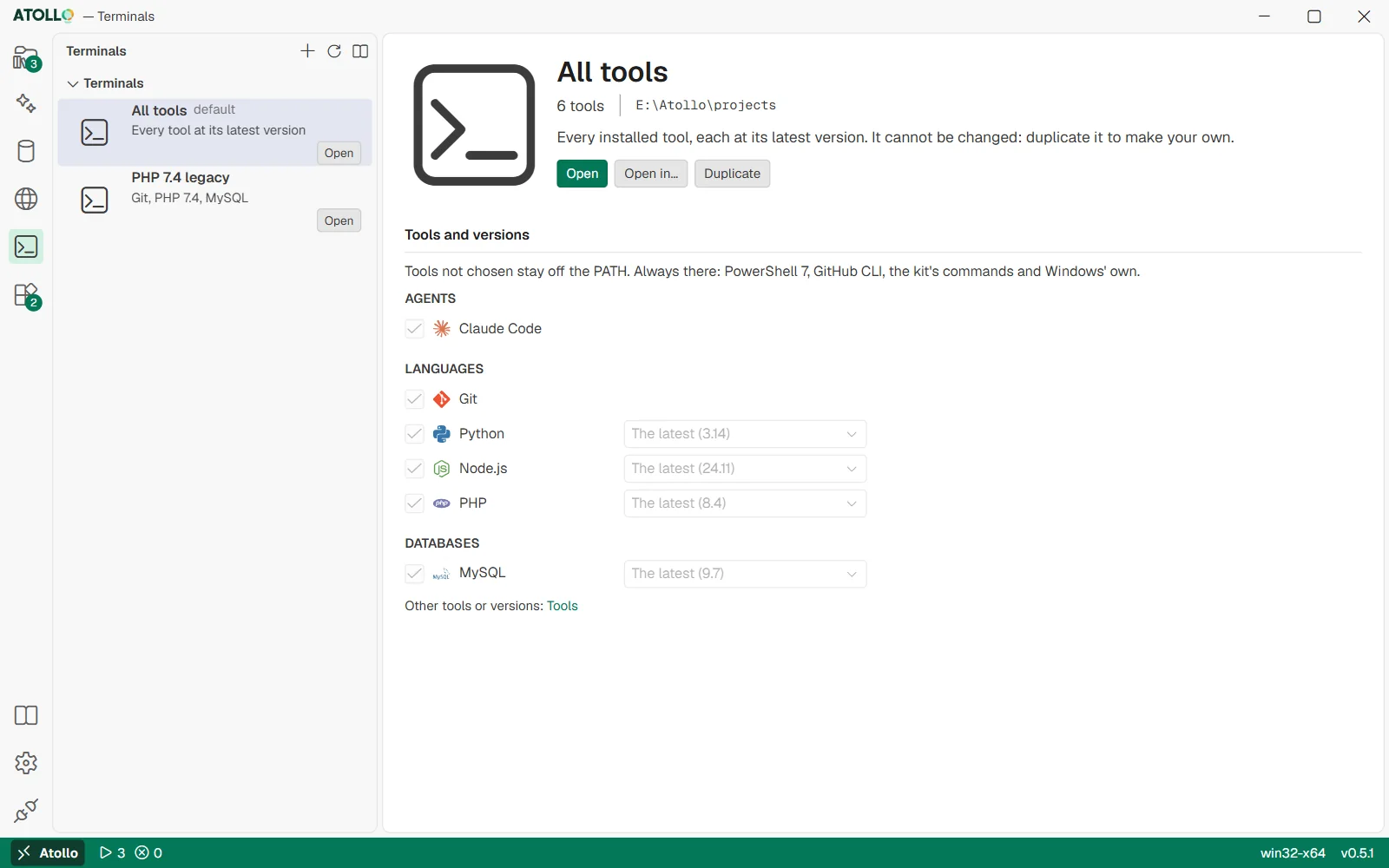
The “All tools” terminal and your own; on the right the start folder, tools and versions.
The Terminals page
The “Terminals” box lists the default “All tools” terminal (“Every tool at its latest version”) and the ones you created. “Open” on a row opens the console in its starting folder.
- A tab opens in the terminal panel inside Atollo, on every system, with the kit's PowerShell 7 (on macOS and Linux, if it is missing, bash). Never the PC's terminal: the tab can move into an Atollo window of its own.
- On Windows the terminal uses the kit's ConPTY (Microsoft's conpty.dll and OpenConsole.exe, the console of Windows Terminal), a part of the app installed with the required components: if it is missing, the app downloads it before opening the terminal (progress in “Activity”).
- When it opens, “Atollo · <terminal name>” appears with the list of tools found; the prompt shows Atollo and the current folder.
Creating your own terminal
Useful when you always need the same set: for example a “PHP 7.4 legacy” terminal with only PHP 7.4 and Composer, opened in the folder of an old project outside the kit.
- Press “New terminal” at the top of the sidebar, or “Duplicate” on an existing terminal.
- In “General” write the “Name” and the “Starting folder” (any folder on the PC: “Choose…” to browse, “Use projects” for the projects folder).
- In “Tools and versions” tick the tools (groups Agents, Languages, Databases; “All” and “None” to go quickly) and for each one the version, or “The latest”.
- Press “Create terminal” (or “Save” for an existing one), then “Open”.
- The tools not chosen stay out of the PATH. PowerShell 7, GitHub CLI, the kit's commands and the system's are always there.
- “Open in…” opens the terminal in another folder just that once.
- Choosing a database tool puts its client in the PATH (for example mysql), but does not start the server: you start that from the Databases page.
- The default terminal cannot be changed: duplicate it to create your own. “Delete” asks for a confirmation (Esc closes the question) and removes only the terminal, not the tools.
- If a chosen version is no longer installed, the terminal uses the newest one and says so, for example “PHP 8.2 → 8.4”; a tool removed altogether stays out.
The terminal panel
The terminal panel is at the bottom, above the “Activity” panel. Each session is a tab (“app · pwsh”, “app · claude”…); “Close the terminal” closes the selected one (if a program is still running inside, the app asks for confirmation) and “Hide the terminals” hides the panel. In the status bar, an item counts the open terminals and shows or hides them.
“Move into a new window” detaches the selected tab: the terminal goes on in a window of its own, which can move to another screen or be maximized, with the same session, its output and the same font (Geist Mono). “Move back to the panel” puts it back among the tabs; closing the window does the same while the program runs, and never stops it. To stop it, “Close the terminal”, in the window or in the panel.
On Windows and Linux Ctrl+C copies the selected text (without a selection it goes to the program), Ctrl+Shift+C copies, Ctrl+V and Ctrl+Shift+V paste; on macOS ⌘C and ⌘V.
Under the hood
- The terminals you created are in data\app\terminals.json (name, folder, tools and versions).
- The console starts with pwsh -NoProfile and the kit's profile (data\kit\profile.ps1): your PowerShell profiles and modules on the PC are not loaded.
- In a terminal from the Terminals page, the ATOLLO_TERMINAL variable holds its name: when you enter a project's folder it does not switch versions, it keeps the ones chosen for the terminal. A project's “Terminal”, on the other hand, uses the project's versions.
- Nothing is downloaded when it opens (except the kit's PowerShell if it is missing): what counts is what is already on disk.