

2. Projects
2.3 Starting a project: actions and ports
What an action is, how to start and stop it, the output, the port, the default action and how to add your own in the panel.json file.
In the app: «Projects»
In short
- An action is a project command with a name: “npm run dev”, “php artisan serve”, the website…
- Web actions get a port from the kit, which waits for them to respond and gives you the address to open.
- The “Default” star picks the action of the “Start” button.
- Actions are recognized by themselves; you add your own with “New action” and they end up in the project's panel.json file.
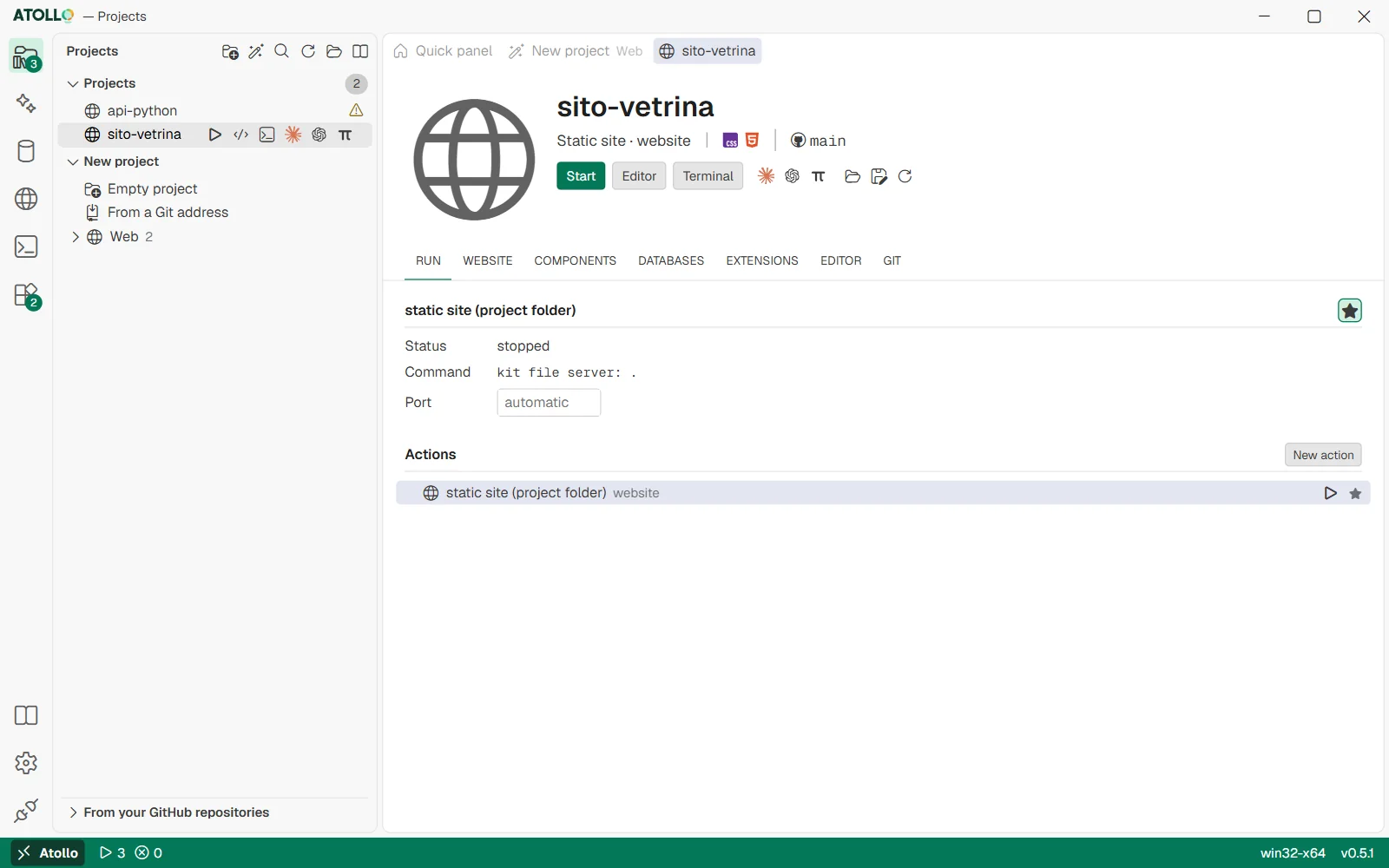
At the top the Start, Editor, Terminal and Agent buttons; below, the chosen action with state, command and port, and the list of actions.
The “Run” section
At the top is the detail of the chosen action (at first the default one), below the “Actions” list. A click on a row selects it and shows its output; ▶ and ■ on the row start and stop it.
| Item | What it says |
|---|---|
| Status | stopped, starting, listening (web action ready), running, exited, stopped, error (with the exit code). |
| Command | The command run, or the server that serves the website (the kit's file server, Apache or Caddy). |
| Folder | Where the command is run. |
| Port | Only for web actions: “automatic” or a number you choose. |
| Address | While the action is listening, the address to open (a link). |
| From the phone | With “Local network” on in the Settings, the address with this PC's IP on the network, to open from a phone or another PC on the same network: “Copy”, and “Show the QR code” to scan with the camera, instead of typing the IP. Atollo makes the QR code itself, with no service on the internet. There is none for a name like shop.localhost of a shared server: the phone cannot send that name. |
| Source | panel.json, if the action is written by hand in the project. |
Below the detail is the “Output of …” pane with the “Follow” checkbox, which keeps the last lines in view. The kit keeps the last 3000 lines of each action; its notes appear as lines starting with [Atollo]. The buttons at the top: the “Default” star, “Open in the browser” (while a web action is listening) and “Clear the output” (when the action has finished).
What happens when you press “Start”
- RereadsRecognizes the project again: panel.json might have changed.
- InstallsIf the action is missing a component, it installs it first.
- PreparesThe kit's environment, the project's versions, port, the action's variables.
- StartsRuns the command in the action's folder.
- WaitsFor a web action, until the port responds: then it is “listening”.
- The browser does not open by itself: use “Open in the browser” (here, in the “Quick panel” or in the “Activity” panel). The address is usually http://localhost:<port>/.
- If the program ignores the assigned port and prints another one in the output, the kit follows that one.
- “Stop” closes the action's whole process tree. Closing Atollo stops all actions.
- Running actions also appear in the “Activity” panel and in the status bar counter; in the panel “Stop everything”, after a confirmation, stops them together with the running databases and web servers.
The port
Each web action has a port of its own, chosen by the kit between 7100 and 7999 the first time and then kept the same at every start: that way the address does not change. If you need a specific number, type it in the “Port” field and press Enter (or leave the field); emptying it takes you back to the automatic port.
- The port must be between 1024 and 65535.
- Ports 7000 to 7099 belong to the editor: one of them is refused with “Ports 7000 to 7099 belong to the editor”.
- A port already used by another action is refused with “Port already assigned to …”, followed by project → action.
- A port that a web server pool or a database version already has is refused too, and the message names its owner: “Port … already belongs to server …: choose another one.” or “Port … already belongs to database …: choose another one.” (for example MySQL 8.4).
The default action
It is the one that starts with the page's “Start” button, with ▶ in the project row and with Shift+Enter in “Open a project”. To change it, choose the action in the list and press the “Default” star. When you serve the project as a website, the website becomes the default action by itself.
Adding, editing and removing actions
- In the “Run” section press “New action”, next to the “Actions” heading.
- Fill in “Name”, “Type” (“Website or web server”, “Windowed app” or “Command”) and “Command”; if needed, “Folder” (relative to the project), “Address” (websites only) and “Variables”, one NAME=value per line. In the command, {port} becomes the action's port.
- Press “Save”. The action appears in the list; its id comes from the name.
- “Edit”, on the chosen action, opens the same form again. On a recognized action it saves your own version with the same id, which takes its place.
- “Remove” exists only for your own actions and asks for confirmation; if a recognized action has the same id, that one comes back.
- The website is edited in the “Website” section, not here.
The panel.json file
Your own actions, the star and the website live in the panel.json file in the project folder. You can also write it by hand and press “Refresh”. The file lives in the project, so it goes into Git and applies to anyone who uses the project with Atollo.
projects\gestionale\panel.json{
"default": "dev",
"actions": [
{
"id": "dev",
"label": "Avvia tutto",
"type": "web",
"command": "npm run dev -- --port {port}",
"folder": "frontend",
"env": { "API_URL": "http://localhost:8000" }
},
{
"id": "test",
"label": "Prove",
"type": "command",
"command": "php artisan test"
}
]
}| Key | Meaning |
|---|---|
id | Identifier of the action: lowercase letters, digits and - _ : . (40 characters at most). |
label | The name you see in the list. |
type | web (a server with a port), desktop (an app with a window) or command (a command that does something and finishes). |
command | The command. {port} is replaced with the action's port. |
folder | The subfolder to run it in (optional). |
url | The address to open, if it is not http://localhost:{port}/ (optional). |
env | Extra environment variables just for this action (optional). |
default | At the top of the file: the id of the default action. |
replace | At the top of the file: true to remove all the recognized actions and keep only yours. |
Under the hood
- The command is run with cmd.exe on Windows and /bin/sh on macOS and Linux, in the action's folder, with the kit's environment and the project's versions. The agents' tokens (CLAUDE_CODE_OAUTH_TOKEN, GEMINI_API_KEY, LLAMA_API_KEY) are not in it: only the agents Atollo launches get them.
- Web actions get the PORT (and ROCKET_PORT) variables with the port; all of them get BROWSER=none, PYTHONUNBUFFERED=1 and ATOLLO_LANG. If the project has a kit MySQL database and its .env does not name another port, they also get DB_PORT.
- The assigned ports and the ones you chose are in data\projects\<project>\ports.json, outside the project.
- Each action runs in its own process group (a Job Object on Windows): “Stop” also closes the child processes, for example the server started by npm.
- In old files the Italian keys (azioni, etichetta, comando, cartella, predefinita) and {porta} instead of {port} are still accepted.