

4. AI: agents and local models
4.1 The agents: Claude Code, Codex, Antigravity, Pi
What they are, how to install them, how to open them in a project, signing in to your account and signing out.
In the app: «AI › Agents»
In short
- An AI agent is an assistant that works in the project folder: it reads the code, changes it, runs commands.
- The kit offers four: Claude Code (Anthropic), Codex (OpenAI), Antigravity (Google) and Pi (Earendil). You install them from Tools.
- Pi also works without an account, on the kit's local models, which run on your PC.
- They always open inside a project, from the Projects page, with the button that shows the agent's logo.
- You sign in to your account the first time the agent starts, and the sign-in stays in the kit, even on another PC.
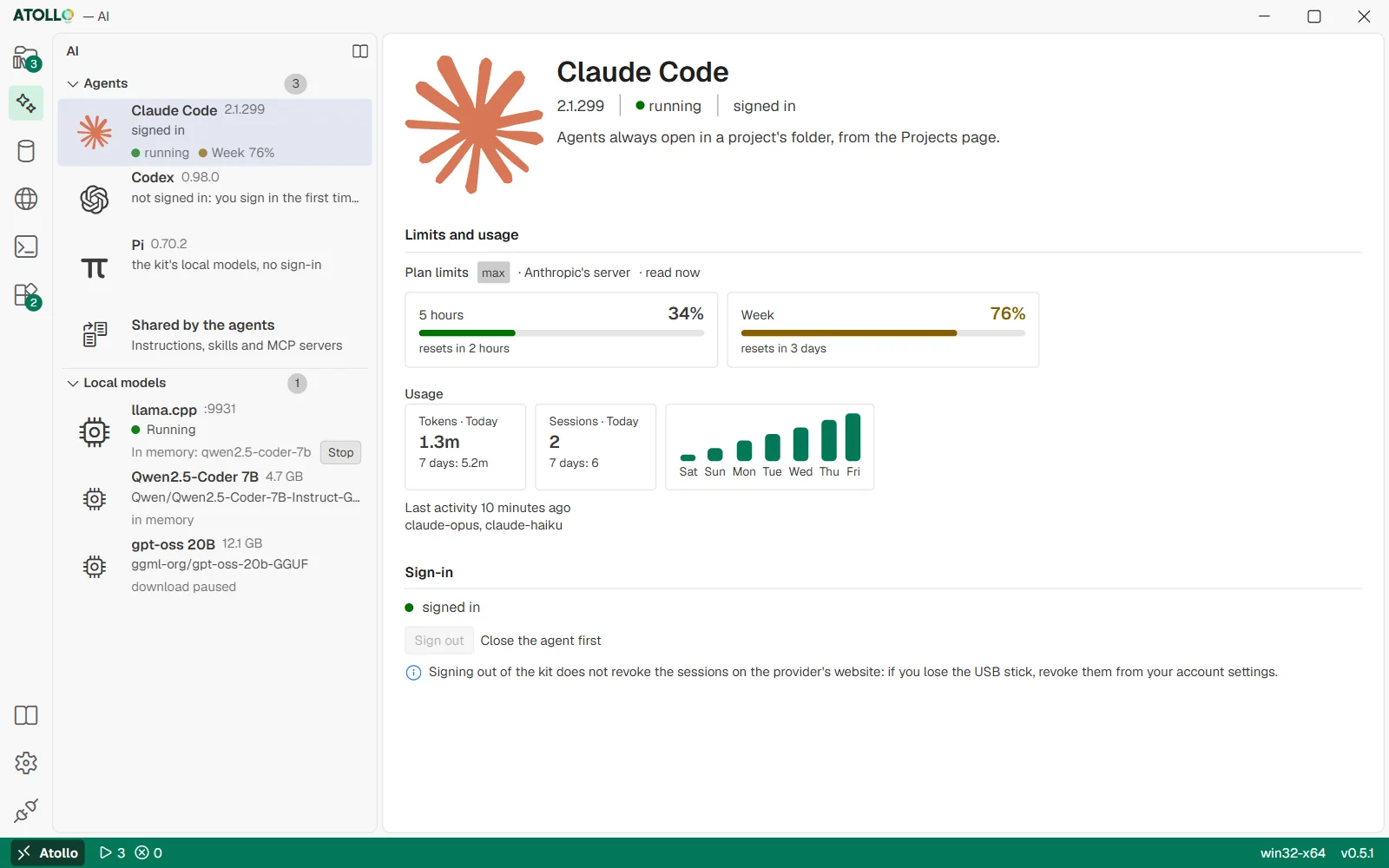
In the Agents pane the installed agents with sign-in and highest limit, then the “Shared by the agents” row; on the right the chosen agent's limits and usage and sign-in.
What they are and what you need
An agent is a command-line program that talks with an artificial intelligence model from its provider. You tell it in plain English what to do (“add a contact page”, “why does this test fail?”) and it reads the files, proposes changes, runs commands and shows you the results. To use it you need an account with the provider and a plan that includes it, or an API key; Pi can use a local model instead, with no account.
| Agent | Provider | Sign-in |
|---|---|---|
| Claude Code | Anthropic | Claude account (subscription); on macOS also a token from claude setup-token. |
| Codex | OpenAI | ChatGPT account or an API key saved by Codex with codex login --with-api-key. |
| Antigravity | Google account or a Gemini API key, to enter on the AI page, Antigravity › Sign-in. | |
| Pi | Earendil (Mario Zechner) | None with the kit's local models; for a cloud provider, /login inside Pi. |
Agents are installed from the Tools page, “AI agents” kind (the first start already suggests Claude Code, Codex and Antigravity; Pi is not among the suggested ones, you tick it by hand). They always follow the latest version and bring along what they need: Claude Code and Pi use Git, which the kit installs with them.
Opening an agent in a project
The AI page does not start agents: an agent always works in a project's folder, so you open it from the Projects page.
- Open the project.
- At the top, next to “Editor” and “Terminal”, there is a button for each installed agent, with its logo (“Open Claude Code”, “Open Codex”, “Open Antigravity”, “Open Pi”). Click the one of the agent you want to use.
- The agent starts right away, in the project folder, in a tab of the terminal panel inside Atollo (on every system).
The same buttons are on the project's row (sidebar or “Quick panel”): a click on a logo opens that agent in the project. An agent that is not installed has no button; if none is installed, there are no agent buttons.
Under the hood
- The last agent opened is noted in the project's dev-settings.json file.
- Before the start, the kit installs what is missing (the agent, its dependencies, the programs of the MCP servers such as Node.js or uv), applies the project's versions and syncs instructions, skills and MCP servers. When the agent ends, it syncs them again.
- Antigravity starts through a small kit program (agy) that puts your sign-in back into the system before the start and brings it back into the kit at the end.
The AI page: the Agents pane
The AI page opens from the activity bar (the sparkle icon) and gathers agents and local models. On the left, two panes: “Agents”, the first one, and “Local models” (Local models: llama.cpp and GGUF (4.4)). On the right is the row you chose; when the page opens, the first installed agent, or the models if there is no agent.
The “Agents” pane (the number beside it counts the installed ones) lists the agents with their version, sign-in status, “running” when they are open and the highest limit reached (for example “5 hours 42%”). The last row is “Shared by the agents” (instructions, skills and MCP servers). On the right, for the chosen agent, two parts:
| Part | What it contains |
|---|---|
| Limits and usage | Agent limits and usage (4.3) |
| Sign-in | The sign-in status, “Sign out”, on macOS for Claude Code “Connect with a token” and, for Antigravity, the Gemini API key. |
The “Shared by the agents” row opens on the right the “Instructions and skills” section (AGENTS.md, skills, mcp.json and “Open shared folder”) and the “The kit's MCP servers” box: Shared instructions, skills and MCP servers (4.2).
Hovering over the pane's title shows “Refresh usage” and “Open shared folder” (data\agents); at the top of the sidebar there is the guide's book. If there is no agent, above the shared row: “No agent installed: add them from Tools.”
Signing in to your account
| Text | Meaning |
|---|---|
| not signed in: you sign in the first time the agent starts | Open the agent in a project and follow its instructions (usually a page in the browser). |
| signed in | The agent is signed in with your account, saved in the kit. |
| signed in with an API key | Codex with the key saved by codex login --with-api-key, Antigravity with the Gemini key entered in its “Sign-in” (see below), or Pi with an API key saved in its auth.json: no plan limits, you pay for what you use. |
| signed in with a token | Only Claude Code on macOS, connected with a token (see below). |
| the kit's local models, no sign-in | Only Pi: no cloud provider, it uses a model downloaded on the AI page, “Local models” pane. There is nothing to sign out of. |
The sign-in stays in the kit folder: when you take the kit to another PC you do not have to sign in again. “Sign out” removes the sign-in saved in the kit after a question (“Remove the sign-in saved in the kit?”, Esc cancels), with the agent closed: while it is open the button says “Close the agent first”. With an API key there is no “Sign out”.
Under the hood
| Agent | Where the sign-in is stored |
|---|---|
| Claude Code | data\home\.claude\.credentials.json |
| Codex | data\home\.codex\auth.json |
| Antigravity | data\antigravity\keyring.json |
| Pi (cloud provider; “Sign out” removes it) | data\home\.pi\agent\auth.json |
| Claude Code, token on macOS | data\agents\claude\oauth-token |
Antigravity saves its sign-in only in the system keychain (Credential Manager on Windows, Keychain on macOS, Secret Service on Linux). The kit puts it there before the start and brings it back into keyring.json at the end, restoring any Antigravity credentials of the PC (kept, encrypted, in keyring-before.json). On Windows the sign-in in the system lasts only for the Windows session.