

2. Projects
2.1 Creating a project
The three ways: an empty folder, a Git repository, or a framework or CMS base with its additions. Plus your GitHub repositories.
In the app: «New project»
In short
- A project is simply a folder inside projects: the kit recognizes it by itself.
- There are three ways to create one: “Empty project”, “From a Git address” and “From a base”, with the bases of frameworks and CMS in four groups: Web, CMS, App and Other. Plus the list of your GitHub repositories.
- A project of yours can become a base: “Save as a base” on its page, and you find it first under “My bases”.
- With a framework, the kit installs the tools needed and runs the framework's official commands.
- You can also copy a folder into projects by hand: it appears in the list after “Refresh”.
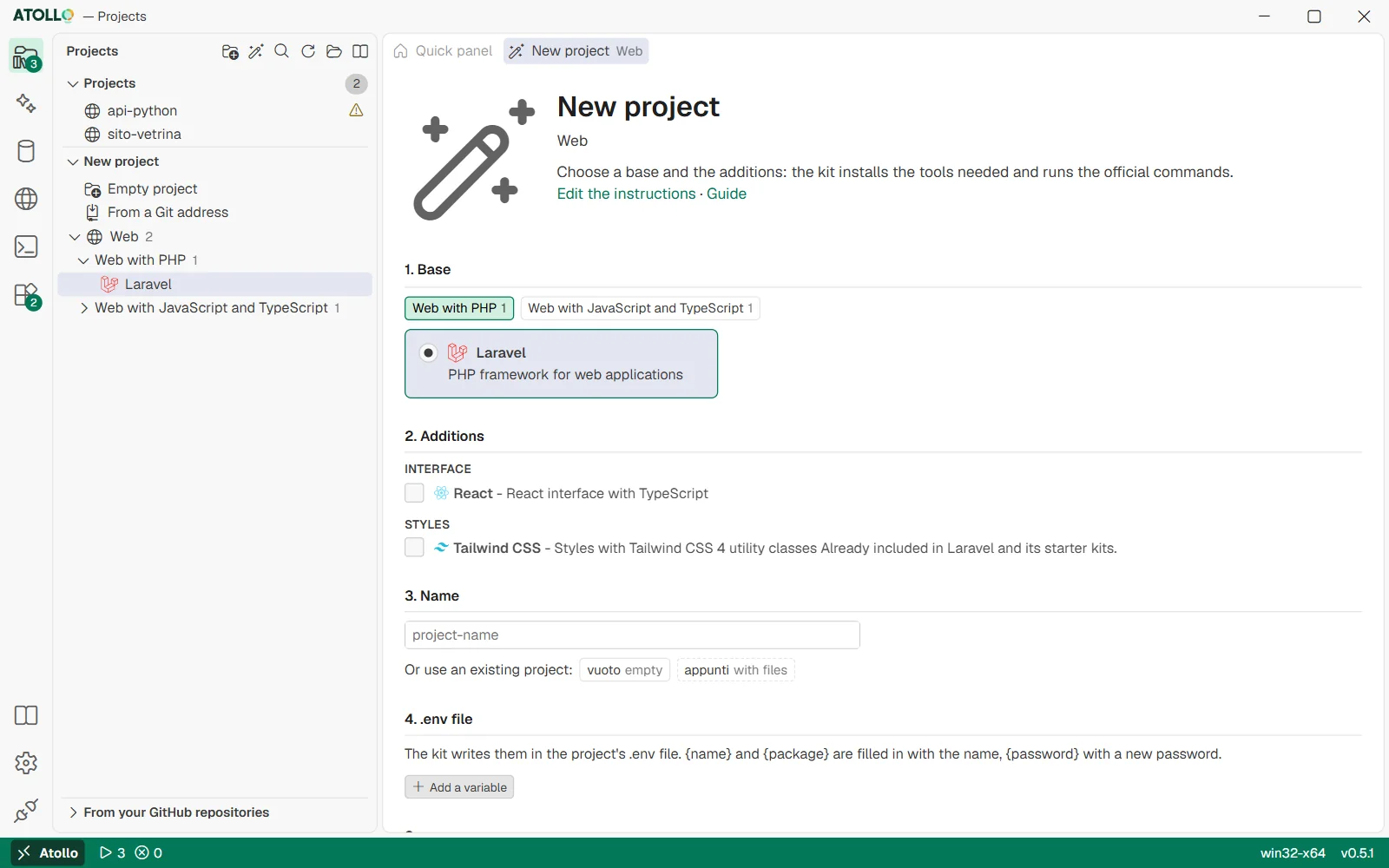
Base, add-ons, name, .env file and summary, one below the other. On the left, the tree of the three ways.
Where you create a project
All roads lead to the “New project” tab of the Projects page, which opens in one of these ways:
- from the “Quick panel”, under “New project”: at the top right the “Empty project” and “From a Git address” links; below, a block per group (My bases, if you saved any, then Web, CMS, App, Other) with its bases by category: a click on a base opens the wizard with that base already chosen;
- from the icons at the top of the sidebar: “New project” (folder with a plus) and “New project from a base” (wand);
- from the “New project” pane of the sidebar, a tree: “Empty project”, “From a Git address”, then the My bases (with the star, if you saved any), Web, CMS, App and Other branches with the number of bases. Under Web, App and Other are the categories and their bases, under CMS the bases directly; a click on a group opens the wizard on its first base, a click on a base opens it with that base already chosen;
- from Ctrl+P, which has the three “New project” entries at the bottom of the list.
A created or cloned project also appears at once on the “Web Servers” page.
Way 1 · “Empty project”
A new, empty folder in projects, to fill as you like (even by copying files into it).
- Type the folder name in the “Empty” field.
- Press “Create”. The new project's page opens.
The name cannot contain \ / : * ? " < > |, cannot start or end with a dot and cannot be a reserved Windows name (like CON or NUL). If a folder with that name already exists, the kit tells you.
Way 2 · “From a Git address”
Copies (clones) an existing Git repository into a folder in projects.
- In the first field type owner/repository for a GitHub repository (for example laravel/laravel), or the full https:// address of any Git server.
- In the second field, optional, the folder name; if you leave it empty it is the last part of the address.
- Press “Clone”.
After the copy the kit looks at the project's files, installs the components needed and picks the versions the project declares (for example the Node version written in .nvmrc or the PHP one in composer.json), downloading them if missing.
Way 3 · “From a base”
A wizard that creates a project starting from a base (a framework like Laravel, Django or Vite, a CMS like WordPress, a site generator, a desktop or mobile app…) and from optional additions (Tailwind, React, a database, testing tools…). The kit installs the tools needed and runs the framework's official commands, the same ones you would find in its documentation.
| Step | What you do |
|---|---|
| 1. Base | Choose a group with the tags at the top (My bases, if you saved any, Web with PHP, Web with JavaScript and TypeScript, Web with Python, Web with other languages, CMS, Static sites and documentation, Desktop app, Mobile app, Data and documents, Command line and libraries) and then the base's card. |
| 2. Additions | Tick the additions you want. They are divided by type (Interface, Styles, Tests, Databases…): you choose only one of each type, and choosing another replaces the first. |
| 3. Name | Type the project name. Alternatively use an existing project that is empty (“empty”) or has files but no Git (“with files”): the framework's files are added and the ones already there stay as they are. A Git repository cannot be used. |
| 4. .env file | The variables the kit will write in the project's .env file. {name} becomes the project name, {package} an identifier like com.example.nome, {password} a new password. You can change the values, remove lines or add some with “Add a variable”. |
| Summary | What will happen: the kit tools, the project database, the commands in the projects folder, those in the project folder and the actions the project will have. |
- Check the “Summary” and press “Create the project”.
- In the “Progress” part you see “Installing the kit tools needed…”, then “Command 1 of N” with the output of each command.
- At the end “Project … created.” appears with “Open the project”. If a command fails, the wizard stops and shows the error.
- ToolsInstalls what the base and the additions ask for (Node, PHP, Composer…).
- CreationRuns the creation commands in the projects folder.
- DatabasesIf planned, creates the database and user and writes the connection in .env.
- FinishingRuns the steps in the project folder (installations, migrations).
- ActionsSaves the recipe's actions in the project's panel.json file.
Under the hood
- One project is created at a time. “Cancel”, during the progress, stops the running command.
- Each line of the recipe is a command run with the kit's PowerShell and the kit's environment, so with the versions of the kit's tools.
- If you use an existing project with files, the framework is generated in a temporary system folder and then moved into the project: the files already there stay, and the progress shows “Already in the project, left as it is”.
- If the plan includes MySQL or MongoDB, the kit starts the server, creates the project's database and user and passes the variables ATOLLO_DB_HOST, ATOLLO_DB_PORT, ATOLLO_DB_NAME, ATOLLO_DB_USER, ATOLLO_DB_PASSWORD and ATOLLO_DB_URL to the commands. The password the kit generates takes the place of an empty one that comes from the base (for example DB_PASSWORD= in its .env.example).
- At the end, if there is a .env file that Git would pick up, the kit adds /.env to the .gitignore file.
- The recipe's actions go into the project's panel.json file with an identifier that starts with fw- (for example fw-avvia).
- Some bases require particular components: Android apps want the Android SDK component; Laravel with MongoDB wants PHP's mongodb extension, which the kit does not install.
“My bases”
A project of yours can become a base, to create more like it: for example a Laravel with your usual packages or the layout of a monorepo.
- On the project's page press “Save as a base”, in the header next to “Open folder”.
- Type the base's name (at first it is the project's) and, if you like, a description.
- “What to copy” has every folder and file at the root of the project, with the number of files and the size: untick the ones you do not want. Below, the total.
- Press “Save as a base”: “Saved: you find it in New project › My bases. The same name replaces it.”
Which files: in a Git repository, those Git would keep, that is the tracked files and the new ones .gitignore does not leave out. Without Git, all of them but the folders without sources (node_modules, vendor, .venv, venv, target, dist, build and the like). Never .env nor .env.local and the other copies, which hold the passwords: .env.example stays instead. Never the .git folder.
To use it: in “New project” the “My bases” group, with the star, is the first. The kit copies the base's files into the new project instead of running a framework's commands, then writes the .env, runs the steps and saves the actions as for the other bases. Here too you can use an existing project that is empty or has files but no Git.
Under the hood
- The files go to data\frameworks\mine\<id>, where the id is mine- followed by the name in lowercase letters, digits and dashes. The copy is made aside and then takes the place of the previous one: saving again with the same name replaces files and base.
- To remove a base: Settings, framework instructions, “Remove” on the base; at the save its folder goes too. If the folder is missing, creating a project says “The base's folder is gone: save it again from the project.”
- Links and junctions inside the project are not copied. Without Git the storage folder is skipped too: in a Laravel without Git it has to be recreated with the base's steps.
Your GitHub repositories
If you have connected the GitHub account, the “From your GitHub repositories” pane of the sidebar lists your repositories and those of the organizations you belong to, grouped by owner, with a “Search the repositories” box.
- “Clone” copies the repository into projects (into the folder with its name, or owner-name if the name is already taken). An already cloned repository has its name in green and the “Editor” button.
- “GitHub” opens the repository in the browser.
- A click on the row opens the details: private or public, language, stars, last push, where it is cloned, “Copy the Git address” and, for the repositories you administer, “Rename” and “Delete from GitHub”.