

3. Databases, websites and terminals
3.3 Websites and .localhost addresses
Serving a folder as a website: static files, PHP, Caddy or Apache. The shared servers of the “Web Servers” page, .localhost domains and aliases.
In the app: «Web Servers»
In short
- In a project's “Website” section you choose a folder and how to serve it: static files, PHP, Caddy or Apache.
- With Caddy and Apache the site joins a server shared with the other projects of the same versions, at an address like http://mio-sito.localhost:8081.
- The “Web Servers” page shows these shared servers (pools) and lets you create your own (profiles).
- The sites respond only to this PC, unless you turn on the local network in Settings.
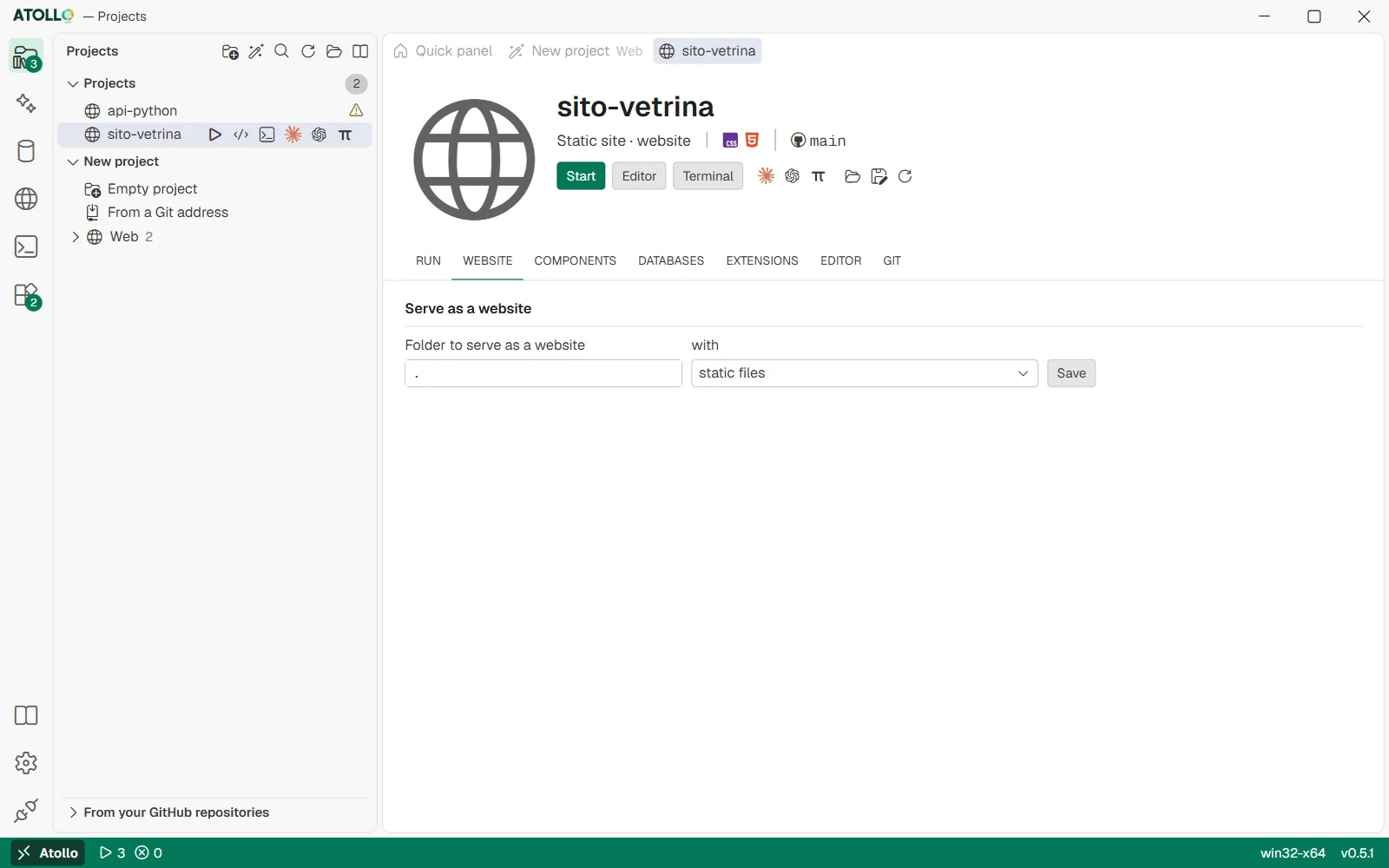
The folder to serve, the way (static files, PHP, Caddy, Apache) and, for Caddy and Apache, profile, domains and aliases.
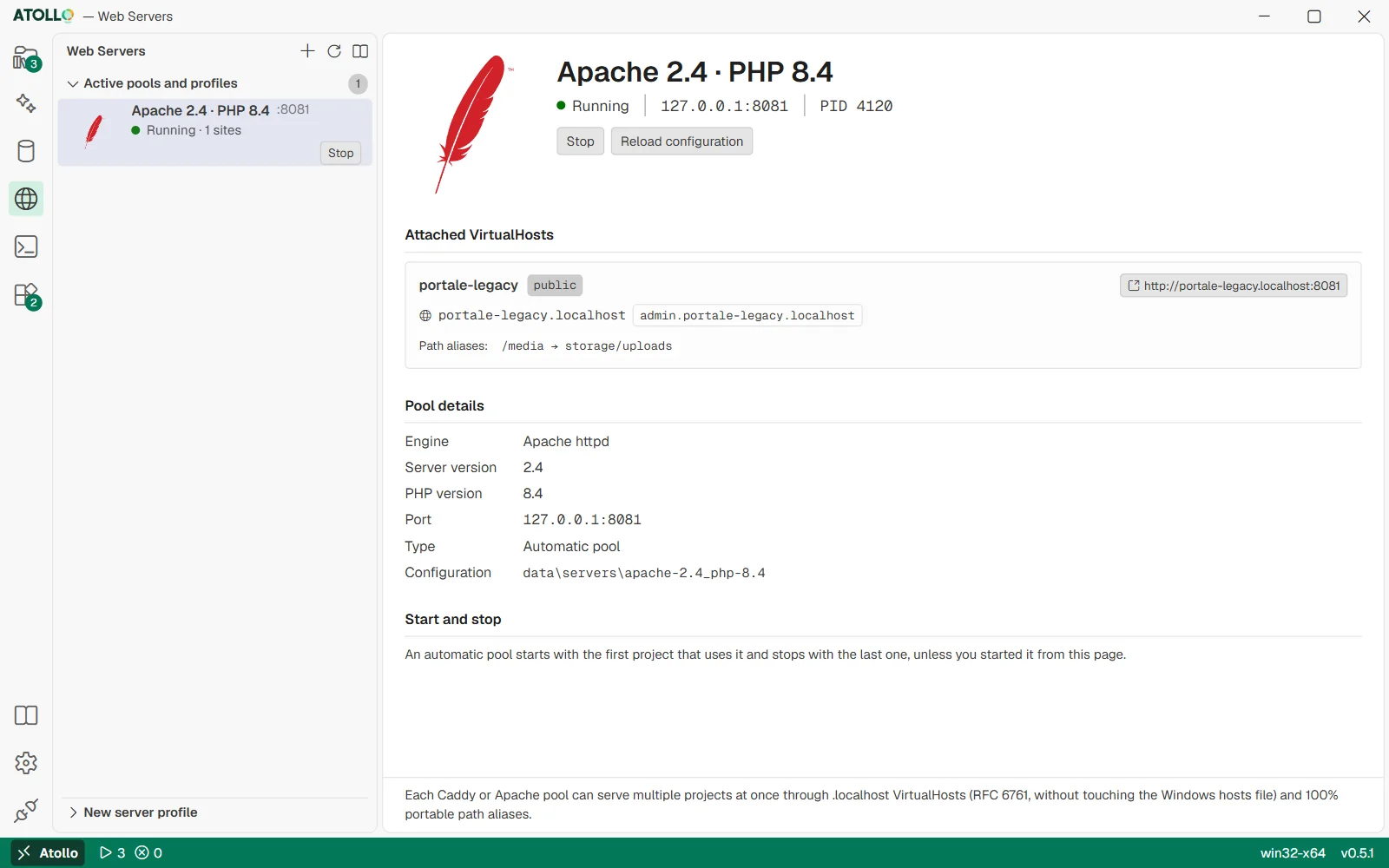
Pools and profiles on the left; on the right the linked sites, the details and the start options of the chosen pool.
Serving a project as a website
- Open the project and its “Website” section.
- In “Folder to serve as a website” write the folder to publish: . for the whole project, or for example public.
- In “with” choose how to serve it (see the table).
- For Caddy and Apache, also choose the “Server profile”.
- Press “Save”. The site becomes the project's default action: it starts with “Start”.
| Choice | When to use it |
|---|---|
| static files | Ready-made HTML, CSS, JavaScript. It is the initial choice. The kit uses its small file server, which also answers as <project>.localhost. |
| PHP (built-in server) | A simple PHP site, served by PHP's built-in server. |
| Caddy | A PHP or static site served by Caddy. Caddy does not read .htaccess files: the kit generates the rewrite rules from the project type. |
| Apache | A site that needs Apache and its .htaccess files (many PHP CMSs). |
“Remove the website” removes the configuration. To change it, stop the site first: the change applies from the next start.
The server profile: shared or its own
| Profile | What happens |
|---|---|
| Automatic (pool by version) | The initial choice. The site joins the shared server of its versions (for example Apache 2.4 with PHP 8.4), together with the other projects that use the same ones: a single port, one name per site. |
| Its own server (the project's port) | A Caddy or an Apache just for this project, on the project's port. The configuration is in data\projects\<project>\apache or \caddy, and your directives go in the conf.d subfolder (.conf files for Apache, .caddy for Caddy). |
| A profile of your own | One of the profiles created on the Web Servers page, for example with a specific PHP version. |
- StartPress “Start” in the project.
- PoolThe kit turns on the pool of its versions, or reloads it if it is already on.
- NameThe site gets the name <project>.localhost.
- AddressYou open it at http://<project>.localhost:<pool port>.
- “Stop” detaches the site from the pool. A pool turned on by projects shuts down with the last project, unless you started it from the Web Servers page or its profile says “Keep running even without projects”.
- If the automatic pool fails to start, the site uses its own server and the output says so: “The shared server … did not start (…): the site uses its own server.”
- In the pool the site keeps your directives, as with its own server: Apache includes the .conf files of data\projects\<project>\apache\conf.d, Caddy imports the .caddy files of data\projects\<project>\caddy\conf.d.
.localhost domains and aliases
With Caddy and Apache you can give the site other names and link folders from other places. Names ending in .localhost always lead to this PC, without touching the Windows hosts file.
| Field | Example | Effect |
|---|---|---|
| Extra .localhost domains | api.negozio.localhost, admin.negozio.localhost | The site also responds to these names. Only names ending in .localhost. |
| Portable path aliases | /media → storage/uploads | The address /media serves the project's storage/uploads folder. With @other-project/public you can serve a folder of another project. |
“Add alias” adds a “URL path” → “Relative folder” row; “Remove” removes it. The folders must be relative (no absolute paths and no ..), so the site keeps working if the kit changes drive letter or PC.
The “Web Servers” page
The “Active pools and profiles” box lists the shared servers with their port, status and number of sites. Clicking one opens its page:
| Part | What it contains |
|---|---|
| Attached VirtualHosts | The pool's sites: project, folder, clickable address, names and aliases. “Detached: the project is stopped” if the project has been stopped. |
| Pool details | Engine, server version, PHP version, port, type (automatic pool or manual profile), configuration folder. |
| Start and stop | For a profile: “Keep running even without projects” and “Start with Atollo”. An automatic pool starts with the first project that uses it and stops with the last one. |
The buttons at the top: “Start” or “Stop”, “Reload configuration” and, for profiles, “Delete profile”, which asks for a confirmation first. A pool still on but no longer tied to projects or profiles shows a warning: stop it. A project created, cloned or deleted appears on the page or disappears from it at once.
- To create a profile, press “New server profile” at the top of the sidebar.
- Fill in “Profile name”, “Web server” (Caddy or Apache httpd), “Server version”, “PHP version” and, if you want, “Port” (otherwise the kit picks a free one between 8081 and 8999). A port that another pool, a database version or a project action already has, or one between 7000 and 7099 (the editor's), is refused: the message says whose it is.
- Choose whether to keep it on even without projects and whether to start it with Atollo, then press “Create profile”.
- In the projects' “Website” section, choose the profile in the “Server profile” menu.
Being reachable from other PCs on the network
Normally the sites respond only to this PC. To try them from a phone or another computer on the same network, turn on “Let other PCs on the network reach the project servers” in Settings › Network: Company network: proxy, certificates, local network (6.3). The other devices use this PC's IP address and the port, with PHP's built-in server too; .localhost names work only here. While the site is running, the “From the phone” row in the action's details shows that address with its QR code, to scan with the phone. Databases and phpMyAdmin stay closed to the network in any case.
Under the hood
- The site configuration is in the project's panel.json file (site action); the profiles in data\app\servers.json.
- The pools' configuration is regenerated at every start and reload in data\servers\<pool> (httpd.conf or Caddyfile, a vhosts folder with one file per site, the logs), never in the project.
- Automatic pools have a name like apache-2.4_php-8.4 or caddy-2.11 and a port between 8081 and 8999 that is remembered from one start to the next, chosen outside the ports the other pools, the databases and the project actions already have.
- HTTP only, no HTTPS. PHP runs as FastCGI (php-cgi with Caddy on Windows, php-fpm on macOS and Linux).
- Reload: Caddy reloads without stopping; Apache, or a change of port or PHP, restarts the pool.