

6. Account and settings
6.2 The Settings, one by one
Automatic saving and the six sections: language and theme, temporary files, network, automatic updates, who signs the commits, privacy and the information about the kit.
In the app: «Settings»
In short
- Settings has six sections in the sidebar (General, Network, Updates, GitHub account, Privacy, The kit) and, below them, the framework instructions.
- There is no “Save” button: every change saves itself half a second later, and the tab bar shows “Saving…” and then “Saved.”.
- They apply at once to the app, the consoles and the agents; to the editor's terminals after “Restart the editor”.
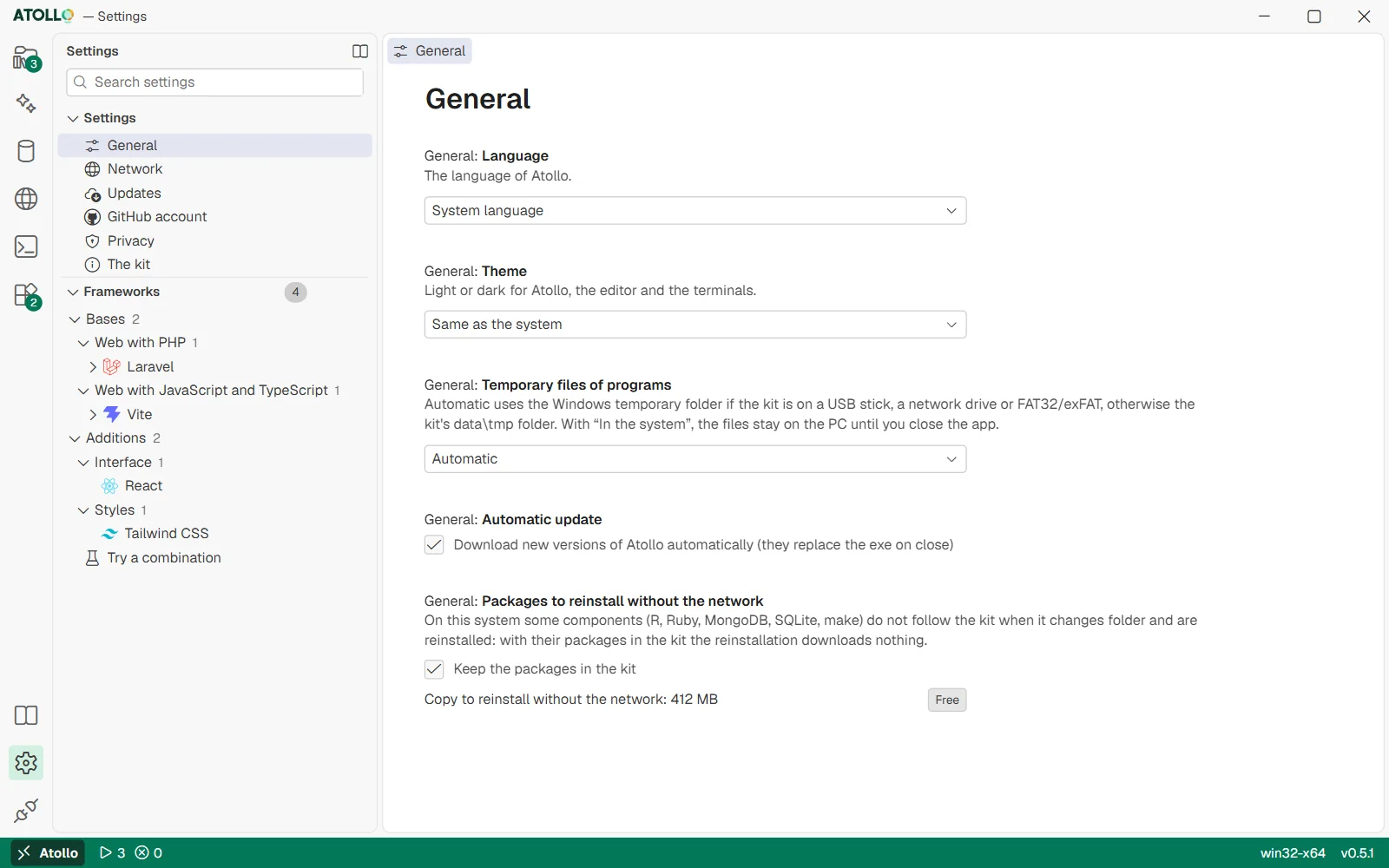
The sections on the left, the framework instructions below them; the saving status on the tab bar.
How changes are saved
- Every change is saved and applied by itself, about half a second after the last keystroke: the tab bar shows “Saving…”, then “Saved.”.
- If a value is not valid (for example a PEM file that does not exist), its error appears and the value stays on screen: the kit tries again at the next change.
- The framework instructions save themselves too, a little under a second after the last edit.
- As in the editor, a setting changed from its default value has a colored bar on its left edge.
- If the editor is open and you change the language, the network or the programs' temporary files, “Restart the editor so that its terminals use the new settings.” appears: the other settings do not need it. The theme reaches the editor and its terminals at once.
General
| Setting | What it does |
|---|---|
| Language | The language of Atollo: the system's (“System language”), Italian, English, French or German. It changes at once. |
| Theme | Light or dark: “Same as the system” (the default), “Light” or “Dark”. It applies at once to every window: Atollo, the integrated editor and its terminals, without restarting the editor. |
| Temporary files of programs | Where the kit's programs put their temporary files. “Automatic” uses the system's temporary folder if the kit is on a USB stick, a network drive or a FAT32/exFAT drive, otherwise data\tmp. “In the kit” always data\tmp; “In the system” always the system's folder (the files stay on the PC until you close the app). |
| Automatic update | “Download new versions of Atollo automatically (they replace the exe on close)”: the new version replaces the current one when you close the app. On by default. It applies at once: turning it on starts a check right away; turning it off before the check 20 seconds after start stops that check. It also allows the daily check of the installed components' versions: at most once a day, after the start, Atollo asks each source for its latest version and Tools shows the ones behind in the “Updates” pane. Off, nothing is asked by itself; “Check now” still works. |
| Packages to reinstall without the network | Only on macOS and Linux: keeps in the kit the packages of the components that must be reinstalled when the kit changes folder (R, Ruby, MongoDB, SQLite, make), so the network is not needed. “Free” deletes them. |
Network
Proxy, additional certificates and local network: Company network: proxy, certificates, local network (6.3).
Updates
The state of Atollo's updates and the “Check for updates” button: Updates and backups (7.3).
GitHub account
The GitHub sign-in for the whole kit: The kit's GitHub account (6.1).
Below the account, “Who signs the commits” has the “Name” and “Email” fields of the commits made with the kit's Git; each one is saved when the field loses focus.
Privacy
“What Atollo does with your data”, in short: no telemetry and no account; settings, keys and sign-ins stay in the kit's folder. Atollo contacts GitHub for its own updates (if automatic updates are on), the official sources of languages and tools when you install or update them and, once a day, to read the available versions (ATOLLO_NO_UPDATE turns this off too), and Open VSX for the editor's extensions. While the AI page is open, every 2 minutes it reads the plan limits of each signed-in agent, sending that agent's token only to its provider; with the GitHub account signed in it uses that account's token with api.github.com. Agents, GitHub and package registries talk directly to their own services, under their own rules.
“Read the privacy policy” opens the full policy in the browser (docs/PRIVACY.md on GitHub), in the app's language.
The kit
Read-only information: kit folder, projects folder, data and programs folder, the kit's disk (file system and type: fixed, removable, network), programs' temporary folder, platform, WebView2 and Atollo versions. If the disk has something to report, a warning appears.
“Kit health” checks what of the PC and the drive may stop the kit: the drive (FAT32, exFAT, noexec), the free space, risky characters in the kit's path, files made private by another account and, on Linux, the system's libraries. Each line is green, yellow or red, with what to do under it; “Check again” runs the checks again (When something goes wrong (9.1)).
“Copy of the kit” copies the projects and the data (settings, databases, agents) into a folder or a zip with “Export to a folder…” or “Export to a zip…”, without the programs, the caches and the local models, which are downloaded again. The database servers stop for the copy, and those with “Start with Atollo” start again after. “Import from a folder…” or “Import from a zip…” checks a copy and prepares it: close Atollo with “Close Atollo to import it” and open it again, and at the start the copy takes the place of the projects and the data; the previous ones go to .atollo-before-import-<date-time>, in the kit's folder. The copy holds the kit's passwords: keep it safe (Updates and backups (7.3)).
Below, “Reporting a problem” has two buttons. “Export diagnostics” makes a zip in data\app\diagnostics with version, system, disk, environment, the programs' check, components, ports and the end of the logs, with the kit's keys, tokens and passwords replaced by ***, your profile folder as ~ and your and the PC's names removed; “Open folder” shows it. The zip stays on the PC: look at it and attach it yourself. “Report a problem” opens a new issue on GitHub in the browser with version and system already filled in; nothing leaves until you create it.
Frameworks
The instructions of “New project”: The framework instructions (6.4).
Under the hood
- The settings are in data\app\settings.json. Every save reads the file again, checks the values, writes it safely (first a copy, then the replacement) and rebuilds the kit's environment. Saves go through one at a time, always with the latest values.
- The theme is the theme entry of settings.json. Atollo passes it to the windows (Tauri set_theme): their pages see it as prefers-color-scheme. The integrated editor follows it thanks to window.autoDetectColorScheme, and the terminals with it.
- If the file cannot be read, the app uses the default values and rewrites it at the first change: “The settings in … cannot be read: using the defaults. The file will be rewritten at the first change.” Entries written by a newer version of Atollo, which this one does not know, stay in the file.
- The Settings search box also searches the framework bases and additions.