

4. AI: agents and local models
4.4 Local models: llama.cpp and GGUF
Language models on the PC, with no network and no account: the server, the chat in the browser, Pi's model, downloading from the catalog or from Hugging Face.
In the app: «AI › Local models»
In short
- A local model is a language model that runs on your PC: no network, no account, no plan. It runs on the CPU or on the graphics card (Vulkan on Windows and Linux, Metal on macOS).
- The server is llama.cpp, the models are GGUF files: you download them from the AI page, “Local models” pane, from Atollo's catalog or from Hugging Face.
- Pi and a chat in the browser use them. The server listens only on this PC, with a key.
- A paused or interrupted download resumes where it stopped, even after closing Atollo.
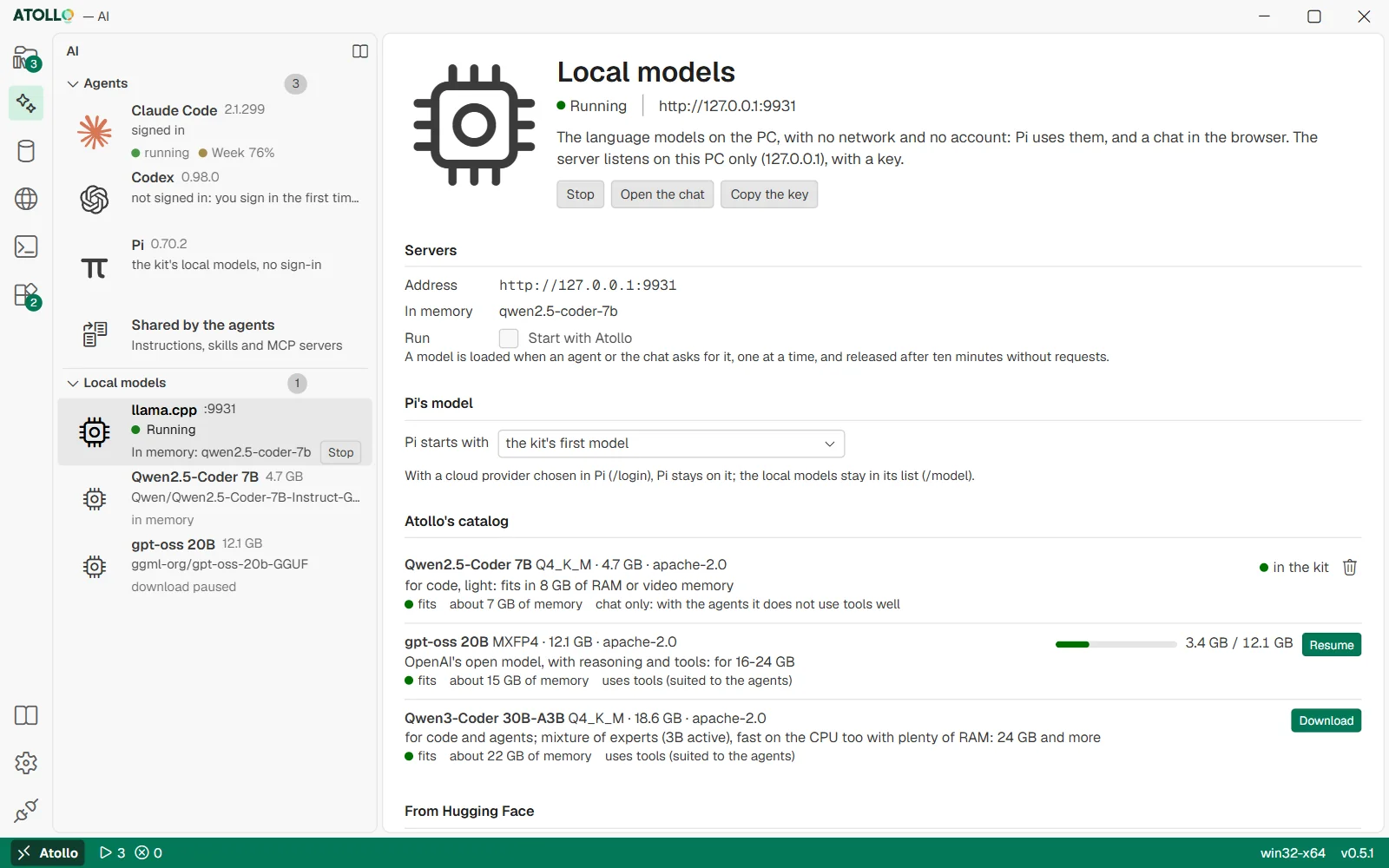
On the left the server and the models in the kit; on the right the server with its address and key, Pi's model, Atollo's catalog with a paused download, and Hugging Face.
What they are and what you need
A GGUF model is a single file (sometimes split into parts) with the model's weights already compressed: the “quantization” (Q4_K_M, Q8_0, MXFP4…) says how much, and the lower it is, the smaller the file and the less precise it is. The llama.cpp server loads the model into the graphics card's memory if there is enough, otherwise it splits it between the graphics card and the RAM or uses the CPU only. The choice is automatic: llama.cpp installs itself the first time you start the server, a single version per system, verified with its SHA-256.
Models take up many GB and need memory: a model with 7-9 billion parameters fits in about 8 GB, one with 30 billion needs more than 20. They are less capable than the cloud models of Claude Code or Codex, but they stay on your PC.
The AI page: the “Local models” pane
It is the AI page's second pane, below the agents; the page opens from the activity bar (the sparkle icon). The number beside the title counts the complete models. The rows: the llama.cpp server with its status, its port and the “Start” or “Stop” button, then the downloaded models (“Pi's model”, “in memory”, “download paused”). Hovering over the title shows “Refresh models” and “Open the models folder”. When you choose the server or a model, at the top right there are “Start” or “Stop”, “Open the chat” and “Copy the key”. Below, the sections:
| Section | What it contains |
|---|---|
| Server | The address (http://127.0.0.1:<port>), the models in memory and “Start with Atollo”, to turn the server on when the app opens. “Start” stays disabled until at least one model is downloaded. |
| Pi's model | “Pi starts with”: a downloaded model, or “the kit's first model”. With a cloud provider chosen in Pi (/login), Pi stays on that one; the local models remain in its list (/model). |
| Atollo's catalog | The models chosen for the kit, each with quantization, size, license, the memory it needs, whether it fits this PC and whether it uses tools. “Download”, then “Pause” or “Resume”; the bin deletes it. |
| Other models in the kit | The models taken from Hugging Face and the .gguf files put by hand in the models folder. |
| From Hugging Face | Any repository (owner/name), the choice of quantization and the token for gated models. |
| This PC | The RAM, the graphics cards with their memory (visible after llama.cpp is installed), the file system of the kit's drive with the free space, and the models folder. |
Choosing and downloading a model
Next to each model the page says whether it fits the PC, comparing the memory it needs with the larger of the RAM and the graphics card's memory:
| Text | Meaning |
|---|---|
| fits | It needs at most 80% of that memory: there is room to spare. |
| just fits | It fits, but leaves little for the rest of the system: it may be slow. |
| too large for this PC | It needs more memory than the PC has. |
“uses tools (suited to the agents)” means the model can call commands and read files when it works with Pi; “chat only” means it does not use them well with the agents (it writes the call as text), but it is fine for chatting in the browser.
| Catalog model | Memory | Use |
|---|---|---|
| Qwen2.5-Coder 7B | about 7 GB | chat only; in two parts, it fits on FAT32 too |
| Qwen3.5 9B | about 8 GB | uses tools |
| gpt-oss 20B | about 15 GB | uses tools |
| Devstral Small 2 24B | about 18 GB | uses tools |
| Qwen3-Coder 30B-A3B | about 22 GB | uses tools |
- In “Atollo's catalog” choose a model that “fits” and “uses tools”, if you want it for Pi.
- Press “Download”. The bar shows the percentage and the GB; the download goes on even if you change page.
- “Pause” stops it and keeps the part already downloaded; “Resume” starts again from there, even after closing Atollo or after a network error.
- At the end the model appears in “In the kit” marked “in the kit”; if the server is on, it restarts to see it.
From Hugging Face
- In “Hugging Face repository” write the repository's owner/name, for example unsloth/Qwen3-8B-GGUF.
- Press “Find the GGUF files”: the kit reads the latest commit and groups the files by quantization, with size, number of parts, whether it fits the PC and the license.
- Press “Download” on the quantization you want: the kit downloads all its parts from that commit, or none. Q4_K_M is usually a good compromise.
Some models are gated: you accept the conditions on the model's page and you need a Hugging Face token. Write it in “Hugging Face token” and press “Save the token”; “Remove the token” deletes it. The token is saved in the kit, readable only by your user, and goes only to huggingface.co: it does not follow the redirect to the CDN the files come from.
The chat in the browser
- Press “Start” (or let “Start with Atollo” do it). The first time, the kit installs llama.cpp.
- Press “Copy the key”: the server's key goes to the clipboard.
- Press “Open the chat”: llama.cpp's chat opens in the browser. Paste the key in its settings, then choose the model and write.
Pi does not need these steps: the kit writes the port and the key into its configuration and turns the server on before opening it, when it uses a local model.
Security and resources
- The server listens only on 127.0.0.1: no other PC on the network reaches it, even with the local network enabled in Settings.
- Every request needs the server's key, created at the first start and given to the server as a file, never on the command line (where other programs on the PC would see it). Without the key the server answers 401.
- A model loads when Pi or the chat asks for it, one at a time, and is unloaded after ten minutes without requests: the memory goes back to the PC.
- The server appears in the “Activity” panel (with “Stop” and the models in memory) and stops with “Stop everything”, with “Remove drive” and when the app closes.
- While you delete a model the server stops: on Windows an open file cannot be deleted.
Under the hood
| File or folder | What it contains |
|---|---|
data\models\gguf\<owner>--<name>\ | The models, one folder per repository, a single copy for Windows, macOS and Linux. atollo.json says what the kit downloaded (files, commit, whether it is complete); a half-done download leaves a .part file. |
data\app\secrets\llama-key | The server's key, owner-only. |
data\app\secrets\hf-token | The Hugging Face token, owner-only. |
data\app\llm.json | The server's port (9931 or the first free one after it), “Start with Atollo” and Pi's model. |
data\app\llm\presets.ini | The models the server offers, with absolute paths: it is rewritten at every start, because the kit may have moved. |
data\app\logs\llm.log | The server's output, to read if it does not start. |
- llama.cpp is pinned to one build (b11669) with the SHA-256 of each system's archive: the Vulkan build on Windows and Linux (which also contains the CPU engines), the Metal one on macOS.
- The catalog's models are pinned to a Hugging Face commit, each file with SHA-256 and size; those taken from Hugging Face are downloaded from the latest commit at the time of the search.
- From the command line:
modelslists the models,models pull <model>downloads one (a catalog id or owner/name:quantization, resumes if interrupted),models rm <id>deletes it,llm start|stop|statuscontrols the server.